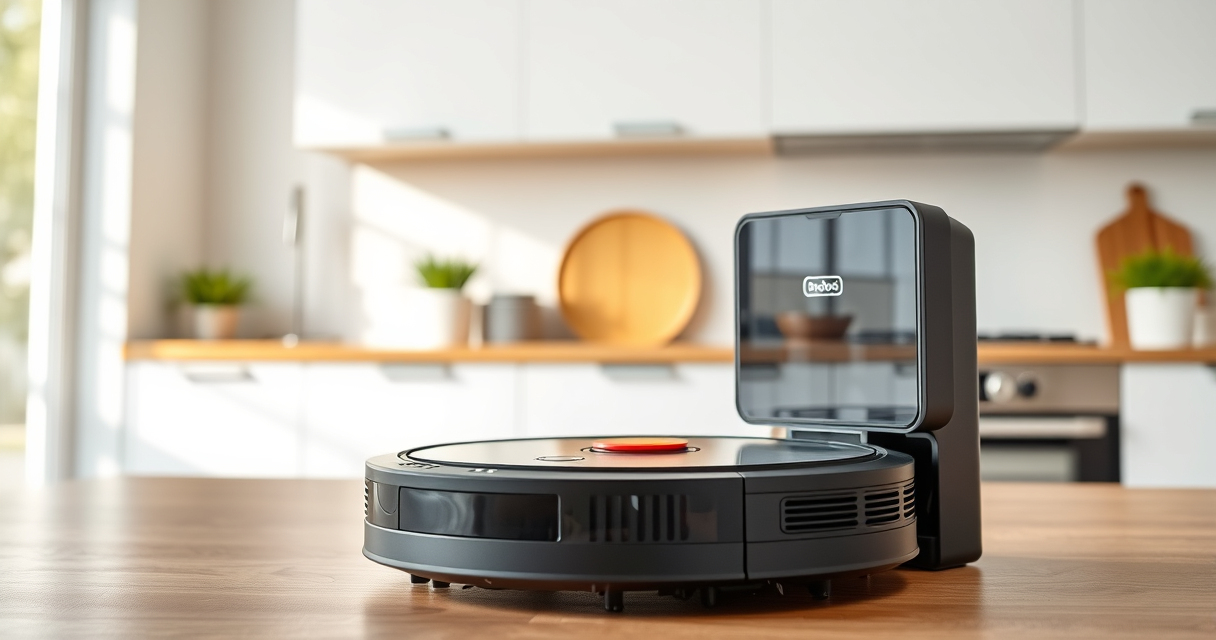

Having trouble connecting your Roborock Q7 M5+ to WiFi can be frustrating, especially when you rely on app control for scheduling and customization. This guide provides practical, safe steps to identify and fix common connectivity issues, ensuring your robot vacuum operates smoothly and stays connected.
Follow these clear instructions to troubleshoot WiFi problems and get your Roborock back online quickly.
Key Takeaways
| Check WiFi Compatibility | Ensure your WiFi network meets the robot’s requirements. |
| Restart Devices | Reboot your router and vacuum to reset connections. |
| Update Firmware & App | Keep both your vacuum firmware and app updated. |
| Reset Network Settings | Reconfigure WiFi settings on the vacuum if needed. |
| Check Signal Strength | Ensure your vacuum is within range of your WiFi router. |

roborock Q7 M5+ Robot Vacuum and Mop, Upgraded from Q5 Max+, Up to 7-9 Weeks Self-Empty, 10000Pa Suction, Dual Anti-Tangle System for Pet Hair & Carpet, PreciSense LiDAR Navigation, App Control, Black
- Long-lasting Self-Emptying: Up to 7-9 weeks with 2.7L dust bag
- Powerful 10000Pa Suction: Deep cleaning for pet hair and debris
- Anti-Tangle Brush System: Resists pet hair wrap for less maintenance
As an affiliate, we earn on qualifying purchases.
Step 1: Verify WiFi Compatibility and Network Settings
- Confirm your WiFi network is 2.4 GHz, as Roborock vacuums typically do not support 5 GHz networks.
- Ensure your network uses WPA2 security, which is compatible with the vacuum.
- Check that your router’s firmware is up to date for optimal connectivity.
Step 2: Restart Your Router and Vacuum
- Power off your WiFi router, wait 30 seconds, then turn it back on.
- Turn off the Roborock vacuum, wait a few seconds, then restart it.
Step 3: Reconnect via the Roborock App
- Open the Roborock app and go to the device settings.
- Remove the device from the app if it’s listed as not connected.
- Follow the app prompts to add the vacuum again, selecting your WiFi network and entering the password.
Step 4: Update Firmware and App
- Check for firmware updates in the app under device settings and install if available.
- Ensure your app is updated to the latest version from your app store.
Tips & Warnings
- Keep your vacuum within 10-15 feet of the router during setup for a stronger signal.
- Avoid using WiFi extenders that may interfere with the connection.
- Be cautious when resetting network settings; re-enter your WiFi credentials carefully.
The Products in This Guide

roborock Q7 M5+ Robot Vacuum and Mop
- ✔ Battery Life: Up to 9 weeks
- ✔ Dust Capacity: 2.7L
- ✔ Navigation: PreciSense LiDAR

4 Pack Washable Filter
- ✔ Pack Size: 4 filters
- ✔ Compatibility: Multiple models
- ✔ Washable: Yes
roborock Q7 M5+ Robot Vacuum and Mop
The Roborock Q7 M5+ Robot Vacuum and Mop offers high suction power, advanced LiDAR navigation, and a self-emptying dock, making it a top choice for pet owners and busy households.
Pros:
- Powerful 10,000Pa suction
- Up to 9 weeks self-emptying
- Dual anti-tangle system
- App control and smart navigation
Cons:
- Premium price point
- Requires stable WiFi connection
- Complex setup for non-tech users
Best for: Pet owners and large homes needing thorough, automated cleaning.
Not ideal for: Users with inconsistent WiFi signals or budget restrictions.
Bottom line: A high-performance robot vacuum with excellent features, but requires stable WiFi for optimal operation.
4 Pack Washable Filter
This 4-pack of washable filters ensures your Roborock vacuum maintains strong suction and filtration, prolonging its lifespan and cleaning efficiency.
Pros:
- Cost-effective
- Easy to replace
- Compatible with multiple models
- Washable and reusable
Cons:
- Not OEM, but performs similarly
- Requires cleaning every few months
- Replacement needed after extended use
Best for: Maintaining optimal filtration and extending vacuum durability.
Not ideal for: Users preferring OEM parts or with very specific filtration needs.
Bottom line: A cost-effective, washable filter pack that keeps your vacuum performing at its best.
Frequently Asked Questions
Why won’t my Roborock connect to WiFi?
Common causes include incompatible network settings, weak signal, outdated firmware, or app issues. Follow the troubleshooting steps to resolve.
How do I reset my Roborock’s WiFi connection?
Go to the device settings in the app, select ‘Remove Device,’ then re-add it by following the setup prompts to reconnect to WiFi.
What WiFi network frequency should I use?
Most Roborock models work best with a 2.4 GHz network. 5 GHz networks are usually incompatible.
How do I update the firmware?
Open the Roborock app, select your device, then check for firmware updates in the device settings.
Stay Connected for Effortless Cleaning
WiFi connectivity issues can be frustrating, but with these troubleshooting steps, you can quickly resolve most problems and get your Roborock vacuum back to cleaning your home efficiently. Regular updates and proper network setup are key to maintaining seamless control and enjoying the full benefits of your robotic cleaner.
Affiliate disclosure: As an Amazon Associate we earn from qualifying purchases. Prices and availability are accurate as of the time of publishing.